AI screen recorder that does
90% of the editing for you.
It cuts your mistakes, retakes, filler words and silences, zooms into what you're doing, and levels the audio. You check the last 10%, then download it, share a link, or post it.
No credit card required
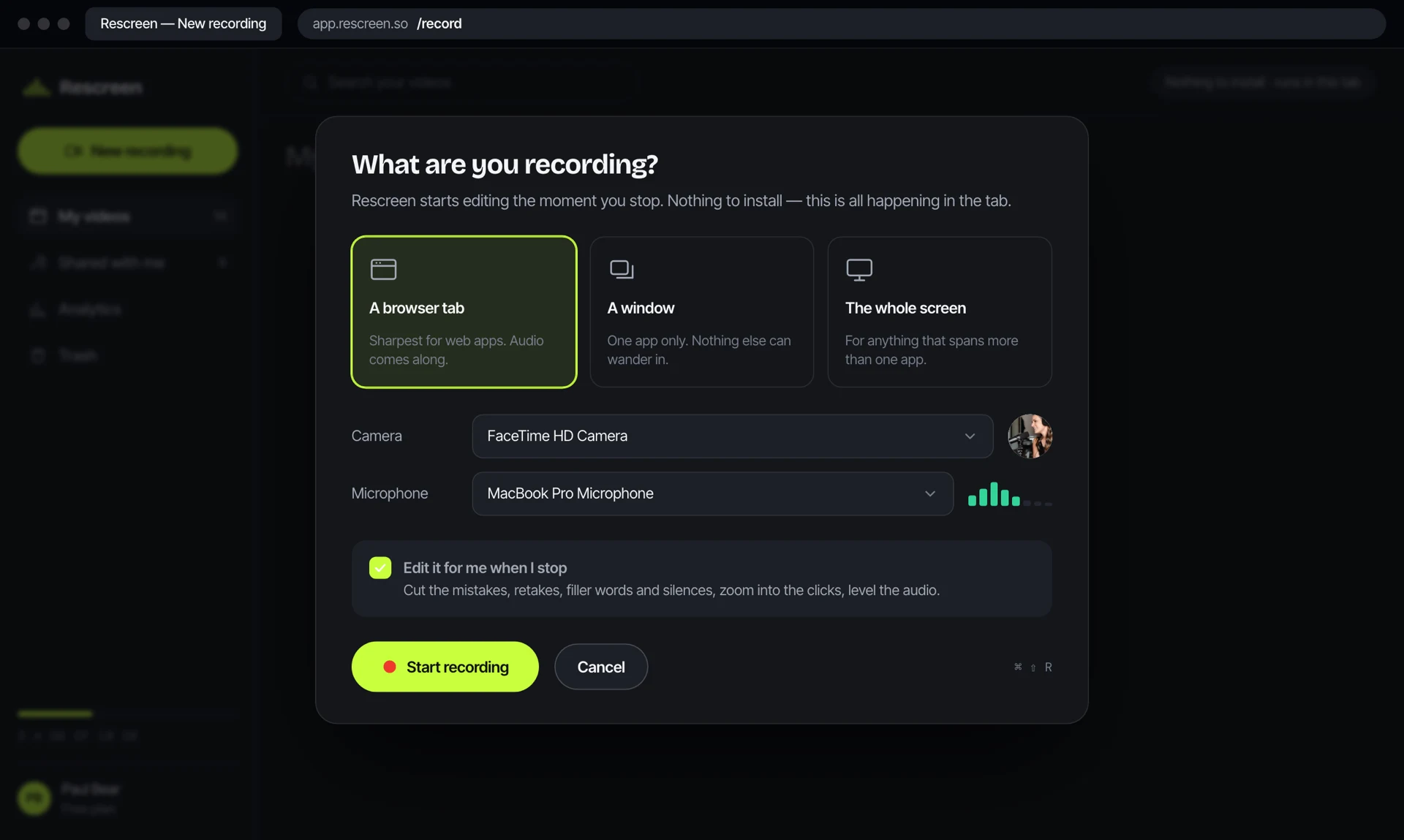
Record in the browser. Nothing to download.
Pick a tab, a window or the whole screen. Screen, camera and microphone each record to their own track in crisp 4K.
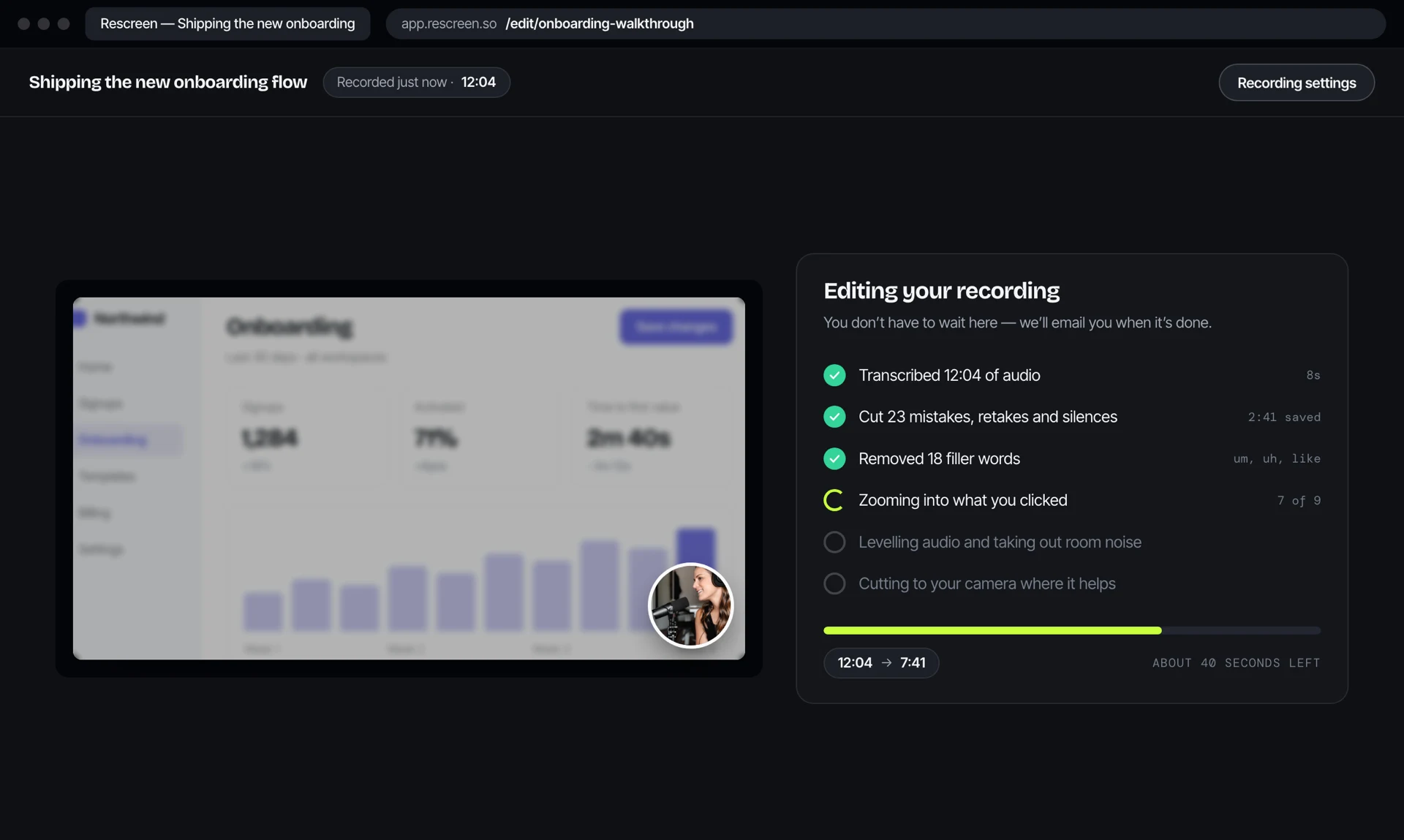
Rescreen auto-edits it with AI.
The whole post-production pass runs on its own. You don't press anything.
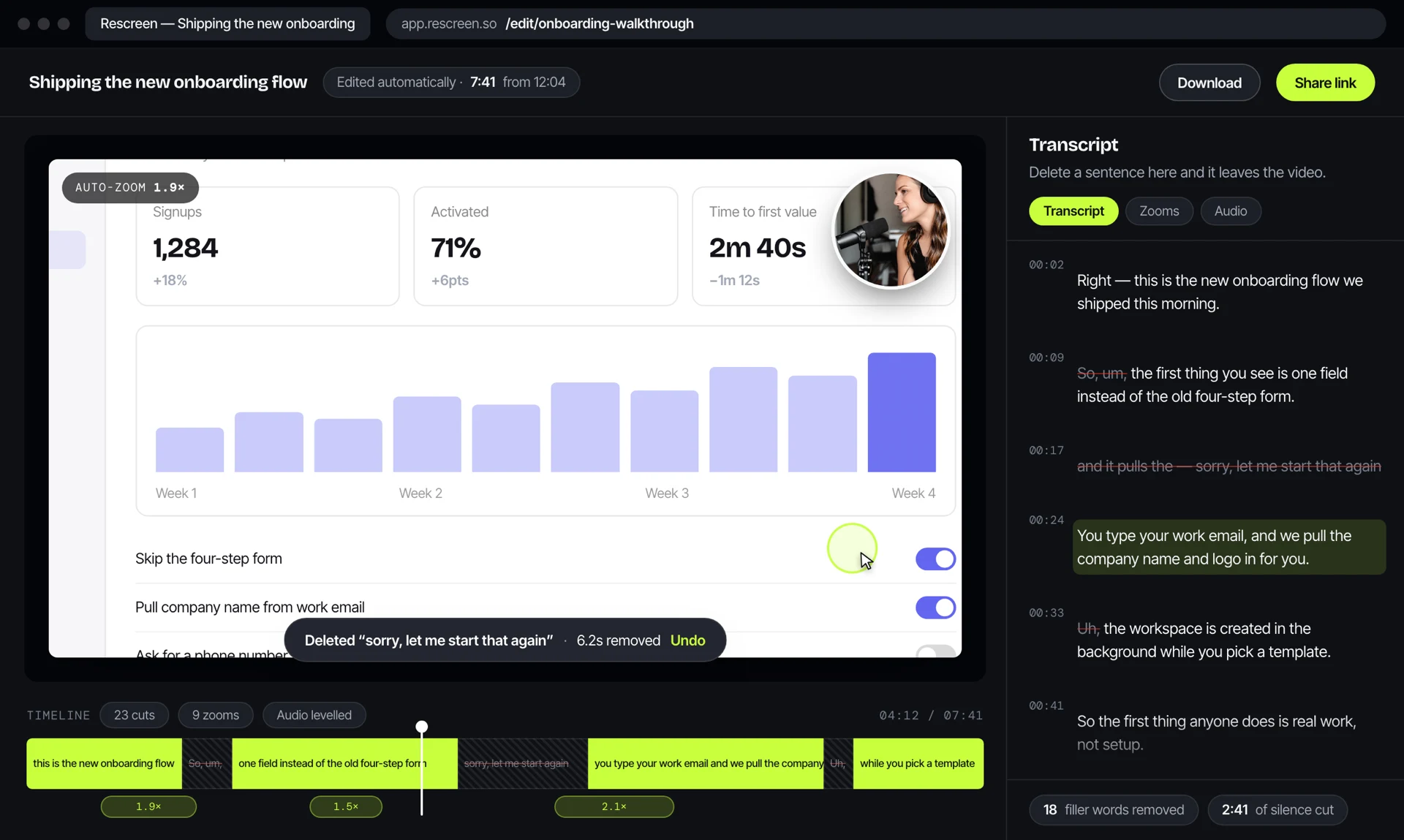
Change it like a document, not a timeline.
Most takes need nothing. When one does, you read the transcript and delete the part you do not want — the video closes up behind it. Drag the ends to trim. No tracks, no keyframes.
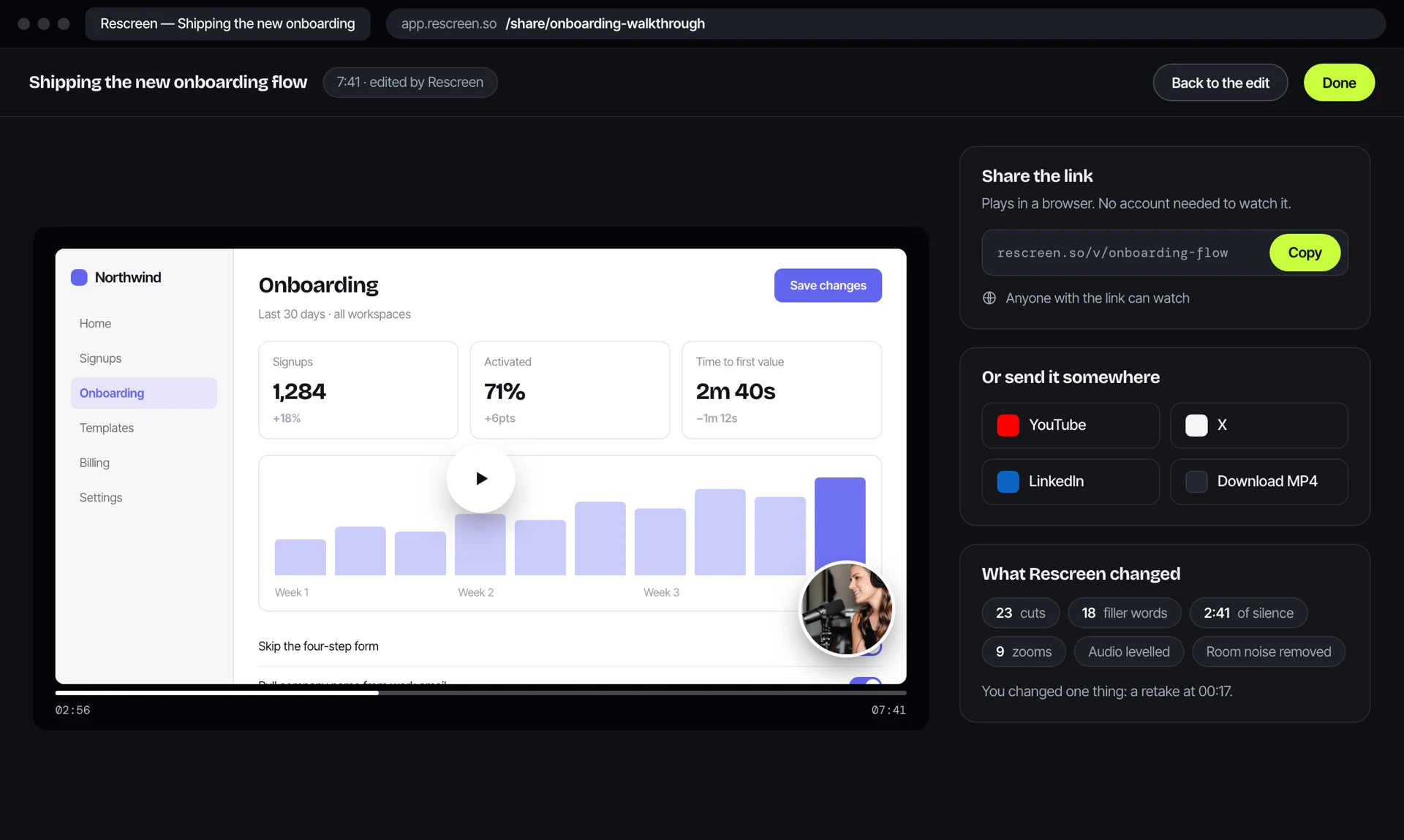
Download it, share a link, or post it.
Take the file and do what you like with it. Or send someone a link. Or post it to your social accounts without leaving the app.
Questions before you record.
The things people ask most often about how Rescreen actually works.
Do I need to install anything?
No. Rescreen records, edits and publishes in the browser. There is no app to download, no extension to approve and no admin password to hunt down — which matters if you are recording on a locked-down work laptop.
Does it work on Windows and Chromebook?
Yes. Anything running a current version of Chrome, Edge, Safari or Arc will record. That is the main practical difference from Screen Studio, which is a macOS application.
Can I record my screen and camera at the same time?
Yes, and they stay on separate tracks. Your camera appears as a circle you can move to any corner, resize, or hide for stretches where the screen should carry the lesson on its own.
What happens after I stop recording?
The edit does. Rescreen trims the dead ends, cuts the mistakes, retakes, filler words and silences, speeds up the long waits, zooms into whatever you were working on, moves your camera off anything it was covering, and levels the audio. You get back a cut, not raw footage.
Do I still have to edit it myself?
Usually not. When you do want to change something, you read the transcript and delete the part you do not want — the video closes up behind it. There are no tracks and no keyframes to learn.
How do I get the video out?
Download the file, copy a share link, or post it to your social accounts from inside Rescreen. Whichever suits — none of them need another tool.
How is this different from Loom?
Loom hands you the raw recording as a link, which is right for a quick message to a colleague. Rescreen edits the recording first, so what you share is a cut rather than a take.
Try it on your next recording.
Free to use. Runs in the browser. Nothing to install.
No credit card required